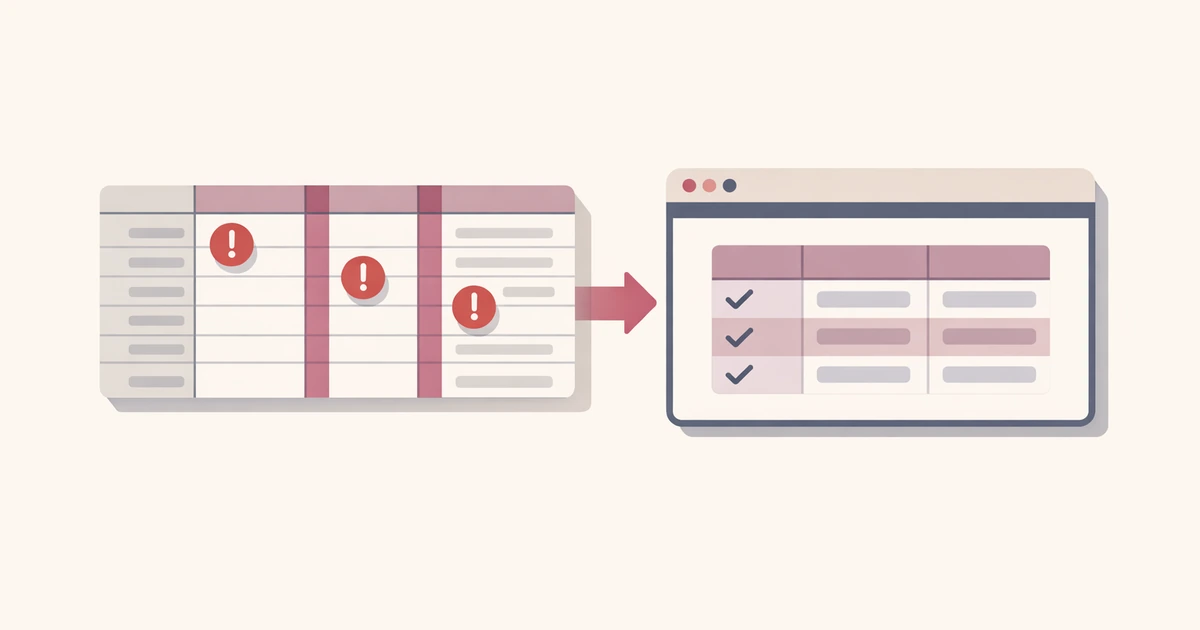
CSV validation becomes urgent right before an import, not when the file is created. A spreadsheet that looks fine can still hide duplicate headers, broken row shapes, or the wrong delimiter until the receiving system rejects it.
The CSV Validator in Converty lets you inspect that structure before the failure happens. Paste CSV text or upload a local file, let the tool detect the separator, decide whether the first row is a header, and compare the issue list against a parsed preview of the data.
If you want the broader context on the rest of the utility site, start with Introducing Converty. If you want the site-wide details on browser workflows and processing behavior, the FAQs cover the operational basics.
Why CSV imports fail even when the file looks fine
CSV problems are deceptive because they often hide in plain sight. A document can look correct in a spreadsheet or text editor and still fail inside an import flow.
Common causes include:
- a file that uses semicolons, tabs, or pipes instead of commas
- a first row that is data, not headers
- inconsistent column counts from one row to the next
- duplicate headers that confuse downstream mapping
- blank rows inside the document that break assumptions
These are not rare edge cases. They are routine issues in exports, hand-edited spreadsheets, copied samples, and automated file generation. That is why a validator is more useful than a generic viewer. You need to know how the data is actually being parsed.
How to validate CSV files before an import fails
The most reliable way to validate CSV files before an import fails is to check both the structural warnings and the parsed result. In Converty, the workflow is short:
- Open the CSV Validator.
- Paste CSV text or upload a local file.
- Let the tool auto-detect the delimiter, or override it manually.
- Decide whether the first row should be treated as a header.
- Review the issues list and compare it with the parsed preview.
That last step is the important one. The issues list tells you what Converty thinks is structurally wrong. The parsed preview shows how the current settings split the rows into columns. Reading them together makes cleanup faster because you can connect a warning to the actual row shape it affects.
This is especially helpful when a CSV is going into another operational step, such as:
- imports into a CMS or admin tool
- spreadsheet cleanup before sharing with another team
- migration work where column consistency matters
- automation flows that assume a stable row schema
What the validator is checking
Converty focuses on the practical structural problems that tend to break workflows.
| Check | Why it matters | What the preview helps confirm |
|---|---|---|
| Delimiter detection | Many files are not true comma-separated values | Whether the current separator produces the expected columns |
| Header handling | Imports often depend on trustworthy column names | Whether the first row should be metadata or real data |
| Row consistency | Mismatched column counts usually break parsing assumptions | Which rows expand or collapse incorrectly |
| Blank and duplicate headers | Poor headers make mapping and cleanup harder | Whether the dataset is ready for the next system |
This is what makes the tool more complete than a simple parser. It is not only about opening the file. It is about explaining whether the structure is stable enough to use.
Delimiter and header problems cause most of the confusion
Two controls do a lot of work in the CSV validator: delimiter selection and the first-row-as-header toggle.
Delimiter detection matters because many exports are not comma-separated at all. Semicolons, tabs, and pipes are common enough that a good validator has to treat them as normal possibilities. Converty checks the current document and picks the delimiter that best matches the row structure it sees. If needed, you can override that choice and immediately compare the result.
The header toggle matters because a parser cannot read intent from the file name. Sometimes the first row is a real header. Sometimes it is just the first row of data. Flipping that one option changes both the warnings and the preview table labels, which is often the fastest way to spot what is actually wrong.
Why paste and upload both matter
Converty supports both pasted input and local uploads, and each is useful in a different situation.
- paste is faster when you are debugging a small sample or a broken section of a file
- upload is better when you want to inspect the full export as it exists on disk
The important part is that both paths use the same client-side validator. You do not get two different behaviors depending on how the file entered the page. That keeps the review process predictable.
If your next step is converting machine-readable config documents rather than validating tabular files, the JSON / YAML / TOML guide covers the paired workflow.
Common mistakes this tool helps you avoid
Assuming the file is comma-separated because it ends in .csv
That is one of the most common causes of broken imports. Converty checks likely delimiters instead of assuming commas every time.
Trusting the issue list without checking how the file parsed
Warnings matter, but the preview is what shows you the actual row and column layout. Using both together makes cleanup much faster.
Treating the first row as a header by default
That works until it does not. Some datasets begin with data immediately, and parsing them as headers creates misleading results. The header toggle lets you test both interpretations quickly.
Waiting until the import step to discover row-shape problems
By then, you are debugging in the wrong tool. Converty helps you catch inconsistent column counts, duplicate headers, and blank rows before another system rejects the file.
Short FAQ
Should I paste CSV rows or upload a file?
Paste is useful for quick checks or small samples. Upload is more convenient when you want to validate the full export from disk.
How does delimiter detection work?
Converty checks the current document against the supported separators and chooses the one that best matches the row structure it sees. You can also override it manually.
What does the header toggle change?
It tells the validator whether the first row should be interpreted as column names or as real data, which affects both warnings and preview labels.
How should I read the issues list and parsed preview together?
Use the issue list to identify structural warnings, then use the preview to confirm how those warnings affect the actual row and column layout.
A faster way to catch import problems before they spread
If you regularly validate CSV files before an import fails, the goal is not just to detect errors. The goal is to understand the file structure quickly enough to fix it without slowing down the rest of the workflow. Converty keeps that process simple by combining delimiter checks, header control, issue reporting, and parsed previews on one page.
Open the CSV Validator when you need the direct tool, review Introducing Converty for the broader utility set, and keep the JSON / YAML / TOML guide nearby when the next task moves from tabular imports to structured configuration.