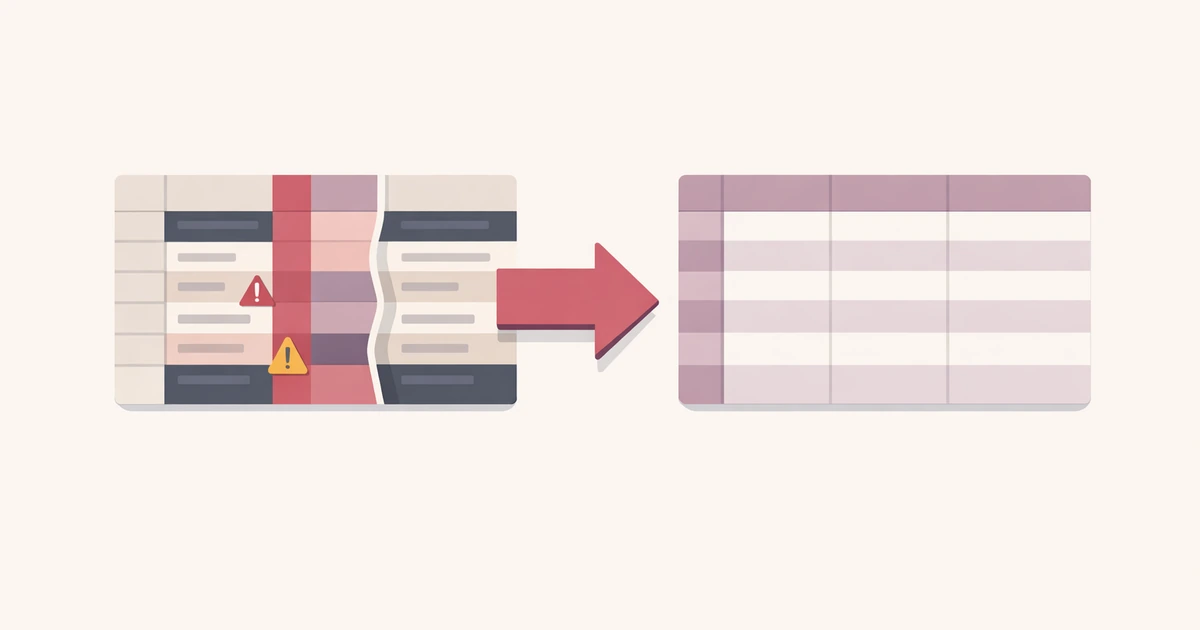
CSV imports fail for boring reasons more often than dramatic ones. A file looks fine in a spreadsheet, gets uploaded into a CRM, CMS, or internal admin tool, and then fails because the separator was not what the receiving system expected. The frustrating part is that the rows can still look perfectly reasonable at a glance. The problem only becomes obvious once the parser starts reading the file differently from the human who opened it.
Delimiter trouble is one of the clearest examples of why raw file inspection is not enough. Looking at commas, semicolons, tabs, or pipes in plain text tells you something. Seeing how a parser actually interprets them tells you much more.
That is the job the CSV Validator is built for in Converty. It does not try to become your database import system. It helps you inspect delimiter detection, header assumptions, row shape, and parsed output before the file reaches the fragile step where a different system rejects it.
Why delimiter problems are so common
Many CSV files are only "CSV" in the loose sense that they are delimited text meant for spreadsheet-like exchange. In practice, the separator may be a comma, semicolon, tab, or pipe depending on the export source, locale, or team habit that produced it.
That is why delimiter problems often show up in international or cross-tool workflows. One export treats semicolons as the default separator. Another uses tabs because the data already contains commas in free-text fields. A third system says CSV but silently expects a narrow structure with consistent quoting and headers. By the time the file lands in the destination system, everyone assumes somebody else checked it.
The result is familiar: a header row collapses into one column, a field count drifts halfway through the file, or the import appears to work while shifting the data into the wrong columns. The delimiter problem becomes a data problem because nobody validated the parsing step before the upload.
The safest question is not "what separator do I see?" but "how is this file being read?"
This is the point where Converty's parsed preview matters more than the raw text pane. If the parser detects a comma and the file really wanted a semicolon, you will see the shape break immediately. If the parser detects a semicolon and the rows line up correctly, you know the import is much more likely to behave downstream.
That sounds basic, but it changes the review habit completely. Instead of arguing about the raw string, you validate the structured interpretation. The delimiter is no longer a punctuation mark. It becomes a parsing rule that you can confirm or challenge with evidence.
This is also why delimiter detection and the header toggle belong together. A row can be parsed with the right separator and still behave badly if the first row is misclassified. The file may have a header when the import assumes data, or it may start with data when a validator assumes headers. Good CSV review means checking both decisions at once.
A realistic pre-import workflow
Imagine a team member exports contacts from one system and needs to import them into another. The file opens fine in a spreadsheet, but several columns contain commas inside quoted fields, and the export source was configured for semicolon-separated output because of a local spreadsheet default.
If you inspect the file casually, it is easy to miss the real issue. The rows look tidy enough. The column names seem present. You only discover the mismatch after the destination system throws an error or maps the fields incorrectly.
The faster workflow is:
- Open the file in CSV Validator or paste a representative sample.
- Review the detected delimiter instead of assuming it.
- Toggle the header option if the first row is being interpreted incorrectly.
- Read the issues list for row-shape problems, duplicate headers, or blank rows.
- Check the parsed preview to confirm the columns line up the way the import target expects.
That sequence is effective because it removes guesswork. You are not trying to eyeball whether a comma is a delimiter or a literal character inside a quoted field. You are checking the parsed result that the import is about to depend on.
Delimiter problems are often tied to header problems
One of the most useful parts of CSV review is recognizing that delimiter issues and header issues often appear together. If the first row becomes one giant string because the separator was wrong, the file may look like it has a broken header when the real problem is the delimiter. The reverse is also true. A correct delimiter paired with a wrong header assumption can make a structurally valid file look suspicious.
That is why Converty's header toggle matters. It lets you confirm whether the first row should be treated as labels or as data without rebuilding the file from scratch. In real import workflows, that saves time because the question is usually operational, not philosophical. You are trying to understand what the receiving system should ingest, not prove that the document belongs to a pure CSV ideal.
Quoting, mixed content, and row-level issues are where the preview earns its keep
Delimiter bugs become more deceptive when the file contains quoted text, embedded punctuation, or uneven rows. A support export might have notes with commas. A product catalog might have descriptions with semicolons. A manually edited spreadsheet might have one malformed row halfway through an otherwise clean file.
This is where the issues list and parsed preview need to be read together. The warning tells you something went wrong. The preview tells you what the parser thinks happened. That combination is much more useful than a single error banner because it gives you a path to a fix. You can see whether the delimiter choice broke every row or whether one specific row introduced the damage.
That is one reason the broader guide, How to Validate CSV Files Before an Import Fails, still matters. It covers the full validation workflow. This article is narrower by design. It is about the specific class of failures caused by delimiter assumptions and why you should confirm the parsing logic before you trust the document.
Fix the file before the import tool becomes the debugger
Import systems are usually terrible places to debug CSV structure. They tell you a row failed or a column count drifted, but they often do not show the file in a way that helps you fix it quickly. By then you are already inside the more fragile part of the workflow.
That is why a pre-import validation pass is so valuable. You keep the debugging close to the source file instead of forcing the destination system to explain the file back to you. If your next job moves from tabular data into configuration formats, pair this with Why TOML Output Is Unavailable for Some JSON or YAML Inputs. The same lesson applies there too: valid text is not always valid structure for the next system in line.
A delimiter check is cheap insurance against avoidable failures
The best CSV import is the one that feels uneventful because the structure was already confirmed before upload. Delimiter problems are annoying precisely because they are so preventable. You do not need a heavy data platform to catch them. You need a fast way to verify how the file is being read.
Open the CSV Validator when you want the direct tool, use the FAQs for site-wide workflow details, revisit How to Validate CSV Files Before an Import Fails for the broader import checklist, and keep Why TOML Output Is Unavailable for Some JSON or YAML Inputs nearby when your next handoff problem moves from spreadsheet rows to structured config data.