A quick PDF does not always need a full word processor. If you only need to turn notes, a short letter, a brief, or plain copied text into a shareable file, a focused browser editor is often faster than opening a larger document app.
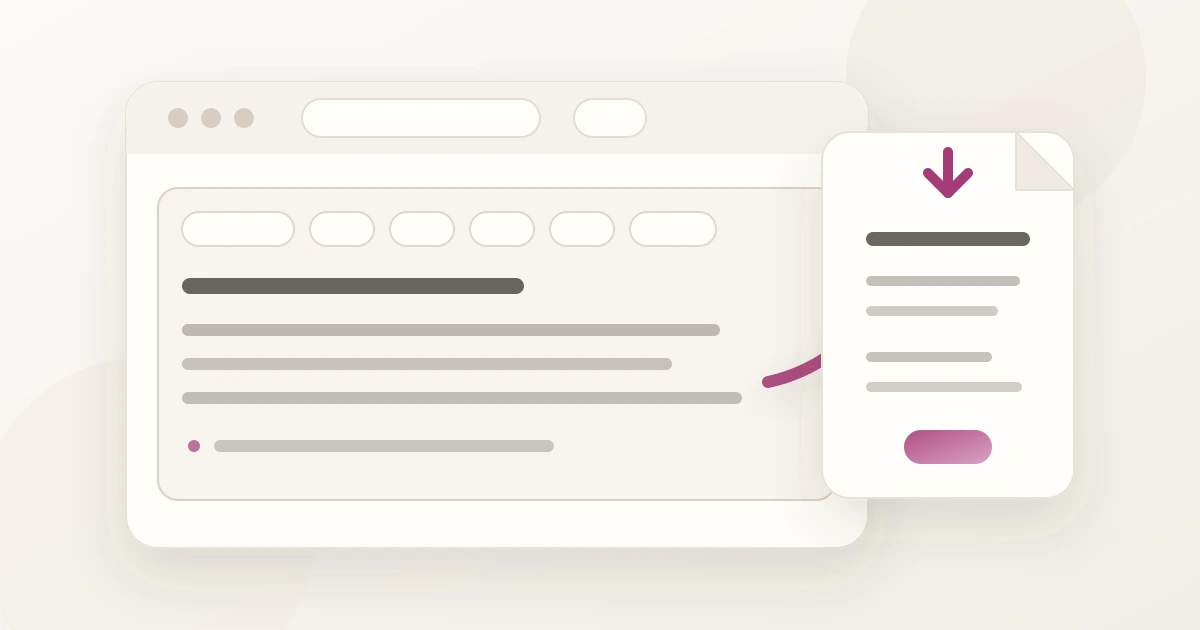
Converty’s Text to PDF tool is built for that small-document moment. You can write directly in the editor, paste text you already copied, or import a .txt file, then format the content and export a PDF from the browser.
When a browser Text to PDF workflow helps
This workflow is most useful when the document is text-first and the next step is reading, sharing, approval, or archiving. It works well for meeting notes, quick instructions, short internal memos, client handoff text, lightweight letters, and drafts that need a stable PDF without a full layout process.
It is not meant to replace a full word processor for complex page design, comments, tracked changes, or long-form publishing. The value is speed: keep the writing surface close to the export button, finish the formatting pass, and create the PDF without changing apps.
How to convert text to PDF
- Open Text to PDF.
- Start typing, paste copied text, or choose a .txt file to import.
- Use the toolbar for headings, lists, quotes, emphasis, code blocks, task lists, and alignment.
- Check the live word and character counts if the document needs to stay short.
- Export the finished text as a PDF.
The empty editor also accepts drag and drop for .txt files, which is useful when a draft already lives on your desktop. Imported text stays plain, so it is easy to format only the parts that need structure.
What formatting carries into the PDF
The export focuses on clean printable text. Headings, paragraphs, bold, italic, underline, strikethrough, inline code, highlights, blockquotes, code blocks, bullet lists, numbered lists, task lists, dividers, supported alignment, superscript, and subscript are preserved where the PDF format supports them.
That makes the tool practical for documents that need structure but not a complex design system. A heading, a short list, and a few emphasized phrases are enough for many quick PDFs.
Privacy and file handling
The Text to PDF workflow is browser-local. Pasted text and imported .txt content stay in the browser tab while the PDF is generated. Converty does not need to upload the text to create the PDF.
That privacy model is one reason the tool fits quick work files. You still need to decide what is appropriate to paste into any browser tool, but for lightweight text conversion the workflow avoids a server-side document pipeline.
Common mistakes to avoid
Do not overbuild a small document just because the final file should be a PDF. If the document is short and mostly text, a focused editor is usually enough.
Do not skip the formatting pass after importing a .txt file. Plain text imports preserve lines, but headings and lists are clearer when you mark them intentionally.
Do not assume every PDF export needs a title page, margins tuned by hand, or a desktop document template. Many approval and handoff PDFs only need readable structure.
Short FAQ
Can I import an existing text file?
Yes. Choose a .txt file or drop it into the empty editor. The content is inserted as plain text paragraphs.
Can I paste copied text?
Yes. Use the Paste action in the empty state, then format the imported content before exporting.
Is the text uploaded before export?
No. The PDF is generated in the browser from the editor content.
Should I use this for Markdown?
Use Text to PDF for plain text and rich-text formatting. If your source is Markdown and you want a rendered preview export, use the Markdown workflow instead.
For broader browser utility decisions, read when to use a browser utility instead of installing another app. If your document starts as Markdown, pair this with downloading a Markdown preview as TXT, PDF, or Word. For file-handling expectations, review are online converters safe for work files.