Image files often need a different frame before they fit a page, social card, marketplace slot, or design handoff. Resizing can blur the artwork, and cropping can remove details you meant to keep. Canvas adjustment solves a narrower problem: change the space around the image while preserving the source pixels.
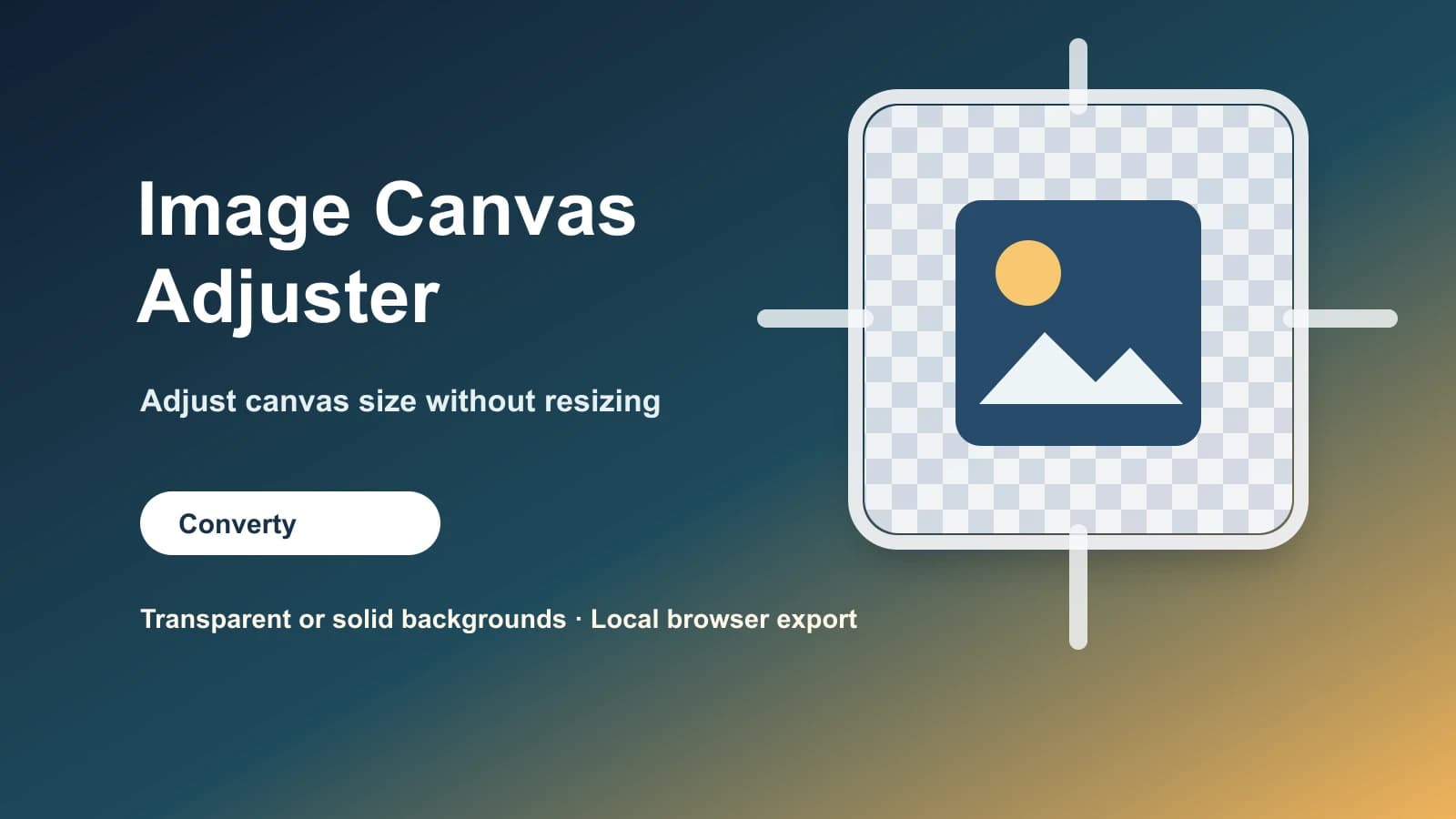
Converty's Image Canvas Adjuster is built for that exact moment. Upload one JPEG, PNG, or WebP image, set the output canvas dimensions, choose where the extra space should appear, and download the adjusted file from your browser.
What canvas adjustment solves
A canvas size change is useful when the artwork is already right but the frame is not. You might need a square version of a horizontal product image, extra transparent space around a logo, a fixed-size preview for a CMS, or a clean background for a JPEG handoff. The tool keeps the image content intentional instead of stretching it to satisfy a layout box.
Canvas adjustment versus resizing or cropping
Resizing changes the pixels of the image itself. Cropping removes pixels outside the chosen area. Canvas adjustment changes the output frame around those pixels. If the canvas is larger than the source, new space is added; if it is smaller, the selected anchor decides which side is clipped.
How the Image Canvas Adjuster works
The workflow stays short so small image fixes do not become a full editing session.
- Open Image Canvas Adjuster and add one JPEG, PNG, or WebP image.
- Enter the exact canvas width and height in pixels, or lock the aspect ratio while adjusting one dimension.
- Use the 3x3 extension control to place the source image on the new canvas.
- Choose transparent output or a solid background, then download the adjusted image locally.
Practical workflows
Use the Image Canvas Adjuster when product screenshots need consistent dimensions, when logos need breathing room, when thumbnails must match a strict ratio, or when social assets need a solid background without changing the original artwork. It pairs especially well with image optimization work, because the canvas can be fixed before the final WebP export.
Local preview and export
The preview and export are created locally in the browser. The image stays on your device while you adjust the canvas. Transparency is supported for PNG-style output; JPEG cannot store transparency, so transparent JPEG exports are flattened to a solid background unless PNG export is enabled.
Short FAQ
Does canvas adjustment resize the image?
No. The canvas changes, but the source image pixels stay at their original size unless you deliberately move or scale the selected image in the editor.
Can I choose where new canvas space is added?
Yes. The 3x3 control lets you extend from the top, bottom, left, right, center, or a corner.
Which image formats are supported?
The tool accepts JPEG, PNG, and WebP images.
Is this useful for transparent backgrounds?
Yes. Transparent canvas areas can be exported as PNG. For JPEG output, use a solid background because JPEG does not store transparency.
For broader workflow decisions, read When to Use a Browser Utility Instead of Installing Another App. If the next step is compression, see How to Convert PNG and JPG to WebP Without Extra Software. For file-handling expectations, review Are Online Converters Safe for Work Files? What to Check Before You Paste or Upload.